


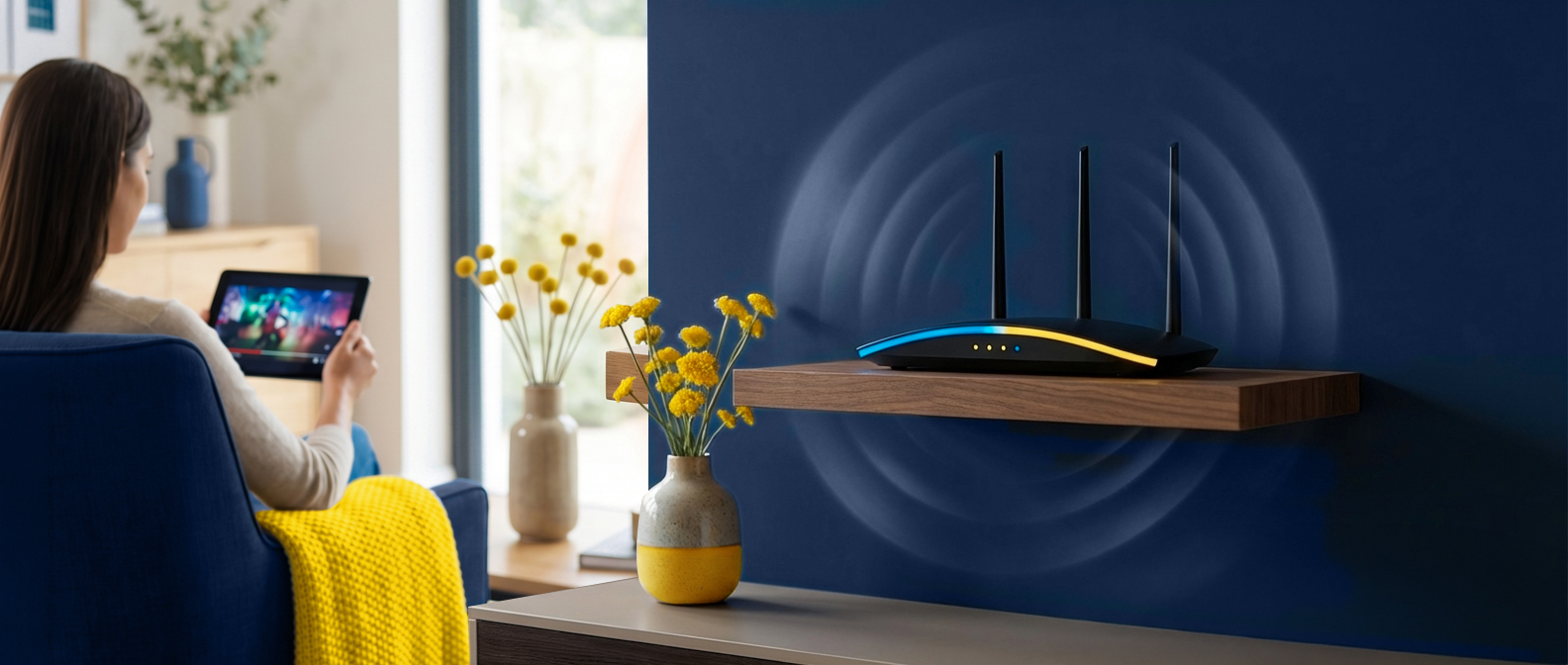
Where you place your Wi-Fi router can make the difference between smooth coverage and constant dead zones. Here is everything you need to know about your Wi-Fi router, explained without the jargon.
Key Takeaway: Your router is the most important piece of tech in your home, and the one most people understand the least. Placement, Wi-Fi band choice (2.4GHz vs 5GHz), and knowing what the lights mean will solve most home internet issues before you need to call anyone.
5 Key Points: Understanding Your Wi-Fi Router
- Your router takes your fibre connection and shares it across all devices. When someone says “Wi-Fi is down,” they usually mean the router is not working properly.
- Solid green lights mean normal. Blinking means data flowing (normal). Red or orange lights need attention.
- Router placement matters more than most people think. Central, off the floor, away from walls, cupboards, and microwaves.
- 5GHz Wi-Fi is faster but shorter range. 2.4GHz reaches further but is slower and more congested. Use both strategically.
- Depending on the current sign-up offer, your ISP may include a router, but placement and setup still make a major difference to your Wi-Fi experience.
Most people do not think about their router until something goes wrong. It sits in a corner, maybe on a shelf, maybe buried behind the TV, doing its thing quietly until one day the Wi-Fi drops and everyone in the house starts panicking.
Where You Put It Matters More Than You Think
This is where most people go wrong, and it is the single biggest reason for patchy Wi-Fi in South African homes.
Put it in the open. Not inside a TV cabinet. Not behind the couch. Not shoved in a cupboard near the floor. Wi-Fi signals get absorbed and blocked by walls, furniture, and especially thick materials like brick and concrete. The more stuff between your router and your devices, the weaker the signal.
Central is better. If your router is in the far corner of the house, the rooms on the opposite side are getting the weakest signal. Ideally, place it as centrally as possible so the signal reaches everywhere more evenly.
Height helps. Wi-Fi signals spread outward and slightly downward. Putting your router on a shelf or mounted higher up on a wall gives it better coverage than leaving it on the floor. Chest height or above is the sweet spot.
Keep it away from interference. Microwaves, baby monitors, cordless phones, and even fish tanks (water blocks Wi-Fi surprisingly well) can all interfere with your signal. Give your router some breathing room.
2.4GHz vs 5GHz: What Is the Difference?
Most modern routers broadcast two Wi-Fi networks. You might have noticed this when connecting a device and seeing two network names, sometimes with “5G” tagged on the end (which has nothing to do with 5G mobile, confusingly).
Here is the simple version:
| Feature | 2.4GHz | 5GHz |
|---|---|---|
| Range | Further, better through walls | Shorter, weaker through walls |
| Speed | Slower | Faster |
| Congestion | More crowded | Less crowded |
| Best for | Far devices, smart home | Close devices, streaming, gaming |
What to connect where:
- Devices close to the router (smart TV, desktop, gaming console) -> 5GHz for the best speed
- Devices further away or through multiple walls (bedroom phone, garden camera) -> 2.4GHz for more reliable reach
- Smart home devices (plugs, sensors, doorbells) -> most only support 2.4GHz anyway
You do not need to overthink this. If your device is getting good signal on 5GHz, use it. If the connection keeps dropping, switch to 2.4GHz.
When to Restart Your Router (and Why It Helps)
“Have you tried turning it off and on again?” It is a cliche because it genuinely works. Routers are small computers, and like any computer, they can get sluggish over time. Memory fills up, processes get stuck, connection tables get bloated. A restart clears all of that out and gives it a fresh start.
When you should restart:
- Your speeds have dropped noticeably for no obvious reason
- Devices keep disconnecting and reconnecting
- Some websites or services will not load, but others do
- You have changed a setting and it does not seem to have taken effect
How to do it properly: Unplug the power, wait a full 30 seconds (this is important, it lets everything fully discharge), then plug it back in. Give it two to three minutes to fully boot up before testing your connection.
Do not just flick the switch off and on immediately. That does not give it time to properly reset.
Frequently Asked Questions
What do the lights on my router mean? Solid green lights generally mean everything is working normally. Blinking lights indicate data is flowing, which is normal. Red or orange lights need attention and usually indicate a connection issue. The power light shows the router is on, the internet/WAN light shows your connection to the fibre ONT, and the Wi-Fi light shows your wireless signal is broadcasting.
Where is the best place to put my Wi-Fi router? Place your router in a central location, off the floor, and away from walls, cupboards, and microwaves. Chest height or above on a shelf gives the best coverage. Avoid hiding it inside TV cabinets or behind furniture, as these materials block the Wi-Fi signal.
What is the difference between 2.4GHz and 5GHz Wi-Fi? 2.4GHz travels further and passes through walls better but is slower and more congested. 5GHz is faster and less congested but does not travel as far. Use 5GHz for devices close to the router (smart TV, desktop) and 2.4GHz for devices further away (bedroom phone, garden camera).
How often should I restart my router? You do not need to restart your router on a schedule. But if your speeds have dropped, devices keep disconnecting, or some websites will not load, a restart often fixes it. Unplug the power, wait 30 seconds, then plug it back in. Give it two to three minutes to fully boot up.
Does the router matter as much as the fibre line? Yes. Even a good fibre connection can feel unreliable if the router is in the wrong place, the wrong Wi-Fi band is being used, or too many devices are competing in a weak-signal area.
Related guides: Knowledge Hub, How to Fix Slow Wi-Fi at Home, Work From Home Internet Checklist, Fibre Internet FAQs, Contact support.
Ready for the next step?
Find a deal that suits your lifestyle, or head back to the Knowledge Hub for more fibre help, FAQs and practical advice.