


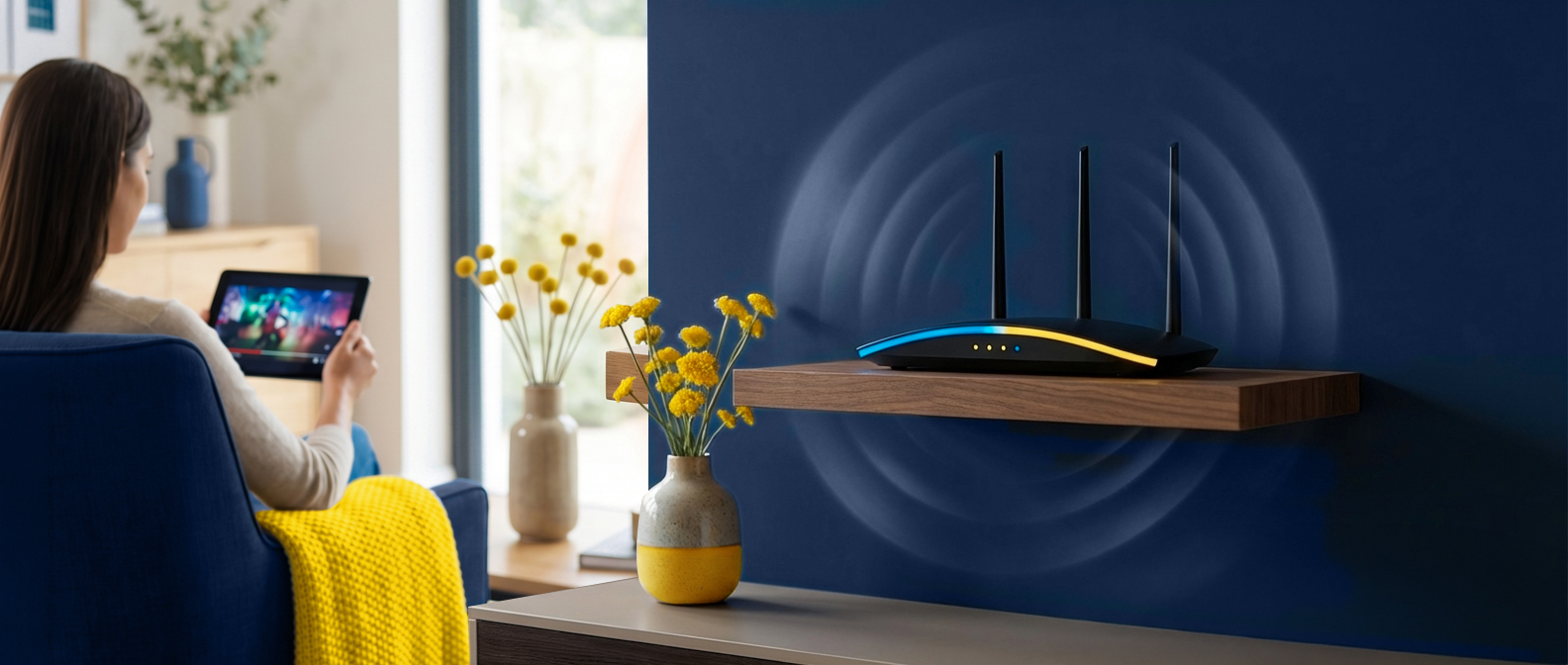
Your fibre line might be fast, but if your Wi-Fi is not pulling its weight, you will never feel it. This is one of the most common frustrations we hear from fibre users, and the good news is that many slow Wi-Fi problems have practical fixes you can try yourself, though some issues may still need support from your ISP or a technician. Just a bit of know-how and ten minutes of your time.
This guide walks you through everything, from a quick diagnostic checklist to detailed fixes for the most common Wi-Fi problems in South African homes. Whether your Wi-Fi drops in the back bedroom, buffers during the 7 PM streaming rush, or just feels sluggish for no obvious reason, we have got you covered.
Key Takeaway: Many slow Wi-Fi problems are caused by router placement, channel interference, or too many connected devices. These fixes are free, take less than ten minutes, and can make a noticeable difference. Your fibre speed and your Wi-Fi speed are two different things, so it is worth checking the fibre line separately if home fixes do not help.
Who This Guide Is For
This guide is for you if:
Your fibre is installed and working, but your Wi-Fi feels slower than it should
You have got dead zones in your house where the signal barely reaches
Your internet slows down when multiple people are online and you are not sure why
You have upgraded your fibre speed but have not noticed a difference
You just want to squeeze every last bit of performance out of your home Wi-Fi without spending a fortune
Whether you are in a two-bedroom flat in Joburg, a double-storey in Durban, or a sprawling Cape Town family home, slow Wi-Fi is fixable. Let us sort it out.
Quick Diagnostic Checklist
Before you start rearranging furniture or buying new equipment, run through this quick checklist. Most slow Wi-Fi issues come down to something simple, and this will help you pinpoint where the problem actually is.
Restart your router. Switch it off, wait 30 seconds, switch it back on. Ja, it sounds basic, but this genuinely fixes more Wi-Fi issues than anything else. Routers get bogged down over time, and a restart clears the cobwebs.
Run a wired speed test. Plug a laptop directly into your router with an ethernet cable and run a speed test at speedtest.net. If the speed matches your package (say, 50 Mbps on a 50/25 plan) your fibre line is fine and the problem is your Wi-Fi.
Check which Wi-Fi band you are on. Most modern routers broadcast two networks: 2.4 GHz and 5 GHz. If you are connected to the 2.4 GHz band, switch to 5 GHz. It is significantly faster, though the range is a bit shorter.
Count your connected devices. Check your router’s admin page or app to see how many devices are connected. You might be surprised. Phones, tablets, laptops, smart TVs, security cameras, smart speakers, that old tablet the kids use. They all use bandwidth, even in the background.
Check for firmware updates. Log into your router’s settings and see if there is a firmware update available. Outdated firmware can cause performance issues, security vulnerabilities, and random dropouts.
Look at your router’s location. Is it stuffed behind the TV cabinet? Sitting on the floor in a corner? Shoved inside a cupboard? If the answer to any of those is yes, that is probably a big part of your problem.
If your wired speed test came back fine but your Wi-Fi is lagging, keep reading. The issue is between your router and your devices, and we can fix that.
Fix 1: Sort Out Your Router Placement
This is the single most impactful change most people can make, and it costs absolutely nothing.
Wi-Fi signals travel outward from your router in all directions, but they lose strength quickly when they hit obstacles. Walls, floors, ceilings, large appliances, and even fish tanks (water blocks Wi-Fi signals surprisingly well). Every barrier between your router and your device weakens the signal.
Where to Put Your Router
Central location. Place it as close to the centre of your home as possible. If your router is in a corner, half of its signal is broadcasting into the wall or out into the garden, not where you need it.
Elevated position. Put it on a shelf, table, or mounted on a wall at about chest to head height. Wi-Fi signals radiate slightly downward, so placing it higher gives better coverage across the room and to the floor below.
Out in the open. Not behind the TV, not inside a cabinet, not on the floor behind the couch. Routers need breathing room, both for signal strength and for ventilation. An overheating router throttles itself.
Away from interference sources. Keep it at least a metre from microwaves, cordless phones, baby monitors, and Bluetooth devices. These all operate on frequencies that can interfere with Wi-Fi, especially the 2.4 GHz band.
Common Placement Mistakes South Africans Make
Hiding the router in the TV cabinet because it “looks ugly.” Aesthetics are losing you 30-50% of your signal strength.
Leaving it next to the ONT box wherever the technician installed it, usually near the front door or in the garage. The ONT needs to stay where it is, but you can use a longer ethernet cable to position the router centrally.
Placing it on the floor. Floors absorb signal, and you are forcing the router to push through more obstacles to reach devices at desk or couch height.
Bottom line: Moving your router to a better spot is free, takes five minutes, and can make a dramatic difference. Try it before spending money on anything else.
Fix 2: Deal With Channel Interference
Here is something most people do not realise: your Wi-Fi router broadcasts on a specific channel within the 2.4 GHz or 5 GHz frequency band, and so does every other router in your building, your neighbour’s house, and the complex next door.
When too many routers use the same channel, they create interference, and everyone’s speeds suffer. Think of it like a braai where everyone is trying to talk at the same time. The more conversations happening on the same frequency, the harder it is to hear anything clearly.
How to Fix Channel Congestion
Download a Wi-Fi analyser app. On Android, “WiFi Analyzer” is free and does the job well. On iPhone, try “Airport Utility” (enable Wi-Fi Scanner in Settings) or “Network Analyzer Lite.” These apps show you which channels are crowded and which are clear.
Log into your router settings. Usually by typing 192.168.0.1 or 192.168.1.1 into your browser. The login details are typically on a sticker on the bottom of your router.
Change to a less congested channel. For 2.4 GHz, stick to channels 1, 6, or 11. These are the only non-overlapping channels. Pick whichever one your analyser shows as least busy. For 5 GHz, there are more channels available, so congestion is less of a problem, but it is still worth checking.
Consider disabling 2.4 GHz entirely. If all your devices support 5 GHz (most devices made in the last five years do), you can disable 2.4 GHz altogether and eliminate that source of interference completely. The 5 GHz band is less crowded and much faster, but the range is shorter, so this works best in smaller homes or if your router is centrally placed.
When Channel Interference Is Worst
If you live in a complex, townhouse, or apartment building, channel interference is almost certainly affecting you. In dense residential areas, there could be 20 or 30 routers all fighting for the same few channels. This is one of the most common reasons why Wi-Fi feels slow in South African housing complexes despite everyone having decent fibre lines.
Bottom line: Your Wi-Fi might be slow because it is being drowned out by your neighbours’ routers. Switching to a clearer channel is free and can make a noticeable difference, especially in apartments and complexes.
Fix 3: Manage Your Connected Devices
Every device connected to your router uses a slice of your bandwidth, even when you are not actively using it. That smart TV on standby? It is checking for updates. Those three old phones still connected to Wi-Fi? They are syncing photos and pulling notifications. The security cameras? They are streaming 24/7.
Modern households typically have 15 to 25 connected devices, and that number keeps climbing. Each one takes a small bite of your available bandwidth, and together they can slow things down more than you would expect.
How to Take Control
Audit your connected devices. Log into your router and check the list of connected devices. You will probably find gadgets you forgot about. Old phones, a guest’s laptop from three months ago, that smart plug you never set up properly. Disconnect anything that does not need to be there.
Use your router’s QoS (Quality of Service) settings. Most modern routers let you prioritise certain devices or types of traffic. You can tell the router to prioritise your work laptop’s video calls over the kids’ YouTube browsing, or prioritise the smart TV for uninterrupted streaming. This does not add bandwidth. It allocates what you have more intelligently.
Separate your IoT devices. If your router supports multiple SSIDs (network names), put your smart home devices (cameras, plugs, light bulbs, sensors) on a separate network from your phones and laptops. IoT devices often use the slower 2.4 GHz band and can create congestion for your main devices.
Schedule heavy downloads. Large game updates, system backups, and cloud syncs can be scheduled for off-peak hours (late at night or early morning) so they do not compete with your streaming and browsing during the evening.
The Real-World Impact
Here is a practical example: a household with 20 connected devices on a 50 Mbps line. If five of those devices are actively using the internet (two streaming HD, one on a video call, one gaming, one browsing) that is roughly 25-30 Mbps spoken for. The remaining 20-25 Mbps is shared among the other 15 devices for background tasks. It works, but it is tight. Remove or disconnect five unnecessary devices and suddenly everyone has more breathing room.
Bottom line: The fewer devices fighting for your bandwidth, the faster your Wi-Fi feels. Do a regular audit, disconnect what you do not need, and use QoS to prioritise what matters most.
Fix 4: Update Your Router’s Firmware
Router firmware is the software that runs your router, and like any software, it gets updates that fix bugs, improve performance, patch security holes, and sometimes add new features. But unlike your phone, routers do not update themselves automatically (most of them, anyway).
If you have never updated your router’s firmware, it is probably running on outdated software that is slower and less secure than it needs to be.
How to Update Your Firmware
Find your router’s model number. It is on the label on the bottom or back of the device.
Log into your router’s admin panel. Open a browser and go to your router’s IP address (usually 192.168.0.1 or 192.168.1.1). Use the admin credentials. These are on the label too, unless you have changed them.
Look for a firmware or software update section. It is usually under “Administration,” “System,” or “Advanced Settings.”
Check for updates and install. Some routers can check for updates automatically from within the admin panel. Others require you to download the firmware file from the manufacturer’s website and upload it manually. Follow the instructions for your specific router.
Do not interrupt the update. Seriously. Do not unplug the router or close the browser while it is updating. A failed firmware update can brick your router. Give it five to ten minutes to finish.
When to Consider Replacing Your Router
If your router is more than three or four years old, firmware updates might not help much. Older routers often lack support for newer Wi-Fi standards, cannot handle as many simultaneous connections, and have weaker processors that struggle under modern workloads.
If you are paying for a 100 Mbps or 200 Mbps fibre line but your router only supports Wi-Fi 4 (802.11n), you are leaving a massive amount of speed on the table. Look for a router that supports at least Wi-Fi 5 (802.11ac), or better yet, Wi-Fi 6 (802.11ax). Wi-Fi 6 handles multiple devices much more efficiently, delivers faster speeds, and performs better in congested environments. Exactly what you need in a busy household.
Bottom line: Updating firmware is free and takes five minutes. If your router is ancient, replacing it is one of the best investments you can make in your home internet experience.
Fix 5: Consider a Mesh Wi-Fi System
If you have tried everything above and you are still getting dead zones or weak signal in parts of your house, the problem might simply be that one router is not enough for your home’s layout.
This is common in larger South African homes. Double-storeys, L-shaped layouts, houses with thick brick walls, or properties where the ONT is installed far from where you actually use the internet.
A mesh Wi-Fi system replaces your single router with two or three units that work together to blanket your entire home in a strong, consistent signal. Unlike old-school Wi-Fi extenders (which just repeat a weaker version of the same signal), mesh systems are smart. They create a single seamless network, automatically route your device to the nearest node, and manage traffic between nodes without you lifting a finger.
When You Need Mesh
Your home is larger than about 120 square metres. A single router typically covers 80-120 m2, depending on walls and layout. Anything bigger and you will likely have weak spots.
You have thick walls. Older South African homes with double-brick walls are notorious Wi-Fi killers. The signal just does not penetrate well, especially on the 5 GHz band.
Your home has multiple floors. Wi-Fi signals weaken as they pass through floors and ceilings. A single router on the ground floor will almost always struggle to cover the upstairs bedrooms properly.
You have moved the router to the best spot and it is still not enough. If central placement, channel optimisation, and firmware updates have not solved your coverage problems, mesh is the next logical step.
Popular Mesh Options in South Africa
You do not need to spend a fortune. As a general guide, entry-level mesh systems typically start from around R2,000 to R3,500 for a two-pack, though prices and product availability change regularly. A two-pack covers most average-sized homes. A three-pack handles larger properties or multi-storey homes. Check current options at your preferred electronics retailer before purchasing.
When choosing a mesh system, look for:
Wi-Fi 6 support for better speeds and device handling
A dedicated backhaul channel (tri-band systems) for communication between nodes. This prevents the mesh network from using your available bandwidth for internal traffic
Easy setup via a mobile app. Most modern mesh systems are genuinely plug-and-play
Enough ethernet ports on each node for wired connections where you need them (smart TVs, gaming consoles, desktops)
Bottom line: If your home is large, multi-storey, or has thick walls, a mesh system is often the most effective way to get consistent Wi-Fi coverage everywhere. It is an investment, but it is the kind that pays off every single day.
Use the Infini-fi Self-Service Platform
Before you call anyone, check if your issue is something you can sort out yourself. The Infini-fi self-service platform at infinifi.co.za lets you manage your account, check your connection status, view your current package details, and find troubleshooting resources, all without picking up the phone. It is designed to put you in control of your own connection.
Whether you want to upgrade your package because your household needs have changed, check whether there is a known outage in your area, or find step-by-step help for common issues, it is all there. Available 24/7, whenever it suits you.
And if you have worked through this guide and you are still stuck, contact our support team directly or call us on 084 555 8858. We are real people, not a call centre in another country, and we will help you get it sorted.
5 Things to Remember
Your fibre speed and your Wi-Fi speed are two different things. A slow Wi-Fi experience does not mean your fibre line has a problem. Test with a wired connection first to figure out where the bottleneck is.
Router placement is the number one fix. Moving your router to a central, elevated, open location can improve Wi-Fi performance more than any other single change, and it costs you nothing.
Channel interference is real, especially in apartments and complexes. Use a Wi-Fi analyser to find a clear channel and switch to 5 GHz wherever possible.
Too many devices drain your bandwidth. Audit your connected devices regularly, disconnect what you do not need, and use QoS settings to prioritise the traffic that matters most.
If one router cannot cover your home, do not fight it. Invest in a mesh Wi-Fi system and enjoy strong, consistent signal in every room instead of battling dead zones with extenders and frustration. And if you think the issue might be your package speed rather than your hardware, compare our current fibre packages to see if an upgrade makes sense.
Frequently Asked Questions
1. How do I know if my slow internet is a Wi-Fi problem or a fibre problem?
Simple test: plug a laptop directly into your router with an ethernet cable and run a speed test. If the speed matches what you are paying for (say, 50 Mbps on a 50/25 plan) your fibre is fine and the problem is your Wi-Fi. If the wired speed is also slow, the issue might be with your fibre line or your ISP, and you should contact Infini-fi support on 084 555 8858.
2. What is the difference between 2.4 GHz and 5 GHz Wi-Fi?
Your router likely broadcasts both. The 2.4 GHz band has better range and penetrates walls more easily, but it is slower and more congested. Every router, baby monitor, and microwave in the neighbourhood uses it. The 5 GHz band is significantly faster and less crowded, but the signal does not travel as far or through walls as well. For anything within reasonable range of your router, 5 GHz is the better choice. Use 2.4 GHz only for devices that are far from the router or do not support 5 GHz.
3. Will a Wi-Fi extender fix my dead zones?
It might help a little, but extenders have a fundamental flaw. They repeat the existing signal, which means the repeated signal is already weaker than the original. You also typically get a separate network name, so your device does not switch seamlessly between the router and extender. A mesh Wi-Fi system is a much better solution for dead zones because it creates a single seamless network with consistent speeds throughout your home. If you can budget for mesh, it is worth it over an extender every time.
4. How often should I restart my router?
There is no strict rule, but restarting your router once every two to four weeks is a good habit. It clears the memory, refreshes connections, and can resolve minor performance issues that build up over time. If you notice your Wi-Fi getting sluggish, a restart should always be your first move. It takes 30 seconds and fixes the problem more often than you would expect.
5. Can my router be too old for my fibre speed?
Absolutely, ja. If you have got a 100 Mbps or 200 Mbps fibre package but your router only supports Wi-Fi 4 (802.11n), you are physically capping your Wi-Fi at around 50-70 Mbps on a good day, and much less at range. Your fibre line delivers the speed to the ONT and through the ethernet cable, but the router is the bottleneck. For packages above 50 Mbps, make sure your router supports at least Wi-Fi 5 (802.11ac). For 200 Mbps, Wi-Fi 6 (802.11ax) is strongly recommended. If you are also wondering whether your current package speed matches your household needs, see our guide to choosing the right fibre speed.
6. Does the number of walls between me and the router matter?
Very much so. Every wall, door, and floor the signal passes through weakens it. Thick double-brick walls, common in South African homes, are especially tough on Wi-Fi. As a rough guide, each standard interior wall reduces signal strength by about 25-30%, and each thick exterior wall can cut it in half. If you are two or three walls away from the router, you will likely notice significant speed drops. This is where mesh systems or moving the router really makes a difference.
7. Should I use my ISP’s router or buy my own?
Using your own router gives you more control over features, better performance, and longer support. ISP-provided routers are usually entry-level. They will get the job done for a small flat, but they often struggle in larger homes or with many devices. If you are on a 50 Mbps plan or higher, investing in a quality Wi-Fi 5 or Wi-Fi 6 router (or a mesh system for bigger homes) will give you a noticeably better experience. You can use any standard router with Infini-fi. Just plug it into the ONT’s LAN port.
8. I have tried everything in this guide and my Wi-Fi is still slow. What now?
If you have optimised placement, checked channels, updated firmware, managed devices, and you are still struggling, it is time to get in touch. Contact Infini-fi on 084 555 8858 or visit the self-service platform at infinifi.co.za. Our team can run diagnostics on your line, check for issues on the network side, and help you figure out whether the problem is something we can fix remotely or if a technician visit is needed. We are here to help. That is what we do.
For more fibre guides and troubleshooting resources, visit the Infini-fi Knowledge Hub.
Ready for the next step?
Find a deal that suits your lifestyle, or head back to the Knowledge Hub for more fibre help, FAQs and practical advice.